Upload and Ingest Files using API
Overview
This guide explains how to upload and ingest files using the Koverse API. You'll learn about the request structure, configuration options, and how to monitor the ingest job status.
Prerequisites
Before you begin, ensure you have:
- An existing Koverse workspace
- An existing Koverse dataset within your workspace
- Access to the Koverse API
API Request Details
Endpoint
Use a POST request to the uploads endpoint.
Request Format
The request must be sent as multipart/form-data with the following structure:
Required Fields
files: The file(s) to uploaddatasetId: The ID of the target dataset
Optional Fields
Custom Metadata
Add custom metadata to ingested records (for document uploads). Provide the metadata as a JSON string.
Example:
{
  "customMetadata": "{\"key\":\"value\",\"createdDt\":\"05/10/2025\"}"
}
Access Control Label
Define the attribute parser for ABAC access control. This determines how the record's security_label is created.
Option 1: Identity Parser
Uses a field from your record as the security label expression.
Configuration:
{
  "securityLabeled": true,
  "securityLabelInfo": {
    "fields": ["label"],
    "parserClassName": "identity-parser"
  }
}
Label Expression Syntax:
- Supported operators:
& | ( ) - UTF-8 characters are supported
- Escape operators with backslash when used in terms (e.g.,
hi\&gh)
Example expressions:
high&medium
high&(medium|low)
high|(medium&low)
高的|(medium&low)
Label Handling Policies:
ignore: Insert rows without security label (open access)replace: Use specified replacement stringdrop: Skip rows with missing values
Option 2: Apply Label to All Records Parser
Applies the same security label to all records in the upload.
Configuration:
{
  "securityLabeled": true,
  "securityLabelInfo": {
    "parserClassName": "apply-label-to-all-records-parser",
    "label": "low"
  }
}
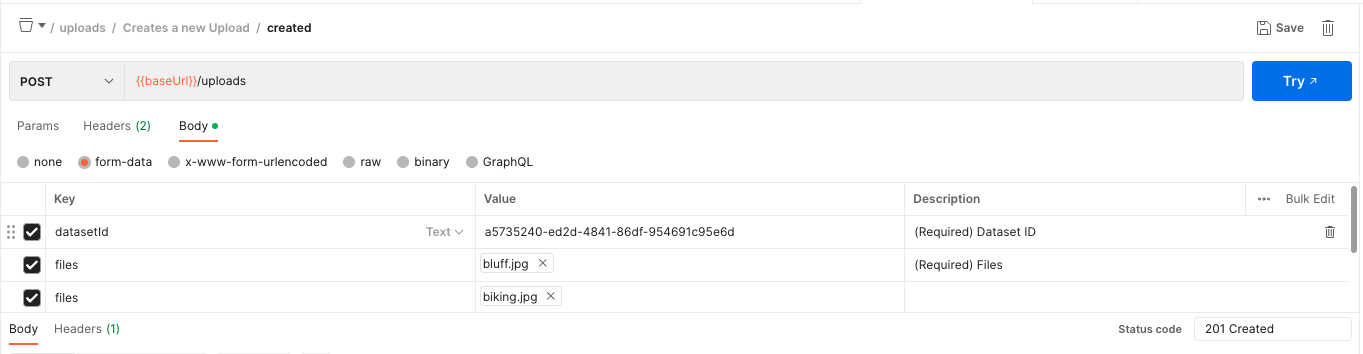
Using Postman
- Select POST method
- In the Body tab, choose
form-data - For the file field:
- Hover over the right side of the Key field
- Switch from 'Text' to 'File'
- Click the Value field to select your file
Monitoring Ingest Status
Response
A successful request (201 Created) returns a response containing a jobId.
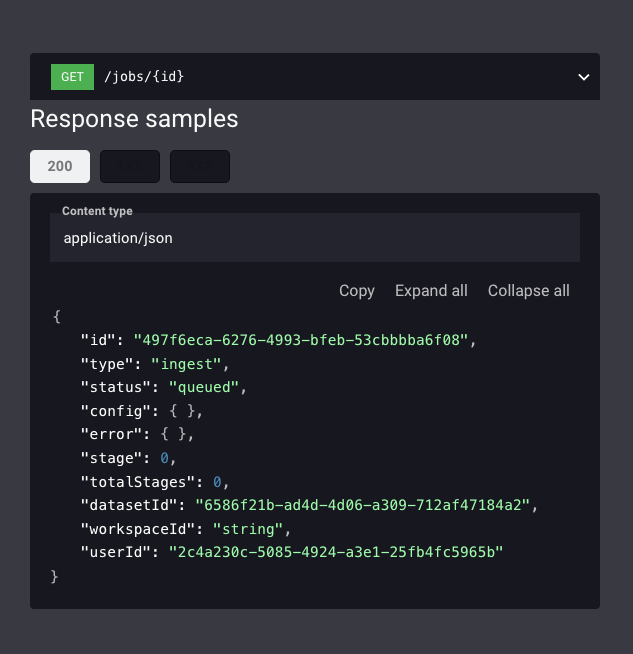
Job Status Checking
- Use the
jobIdto query the job status endpoint:/jobs/{id} - Monitor the
statusfield for these values:
queued: Job is pending processingrunning: Job is in progresscomplete: Job finished successfullyfailed: Job failed (checkerrorfield for details)
Error Handling
- If the job fails, check the
errorfield in the job response for detailed information - Common issues include:
- Missing required fields
- Invalid file format
- Incorrect security label syntax
- Permission issues